

Voice translation
Speak, translate, and listen.
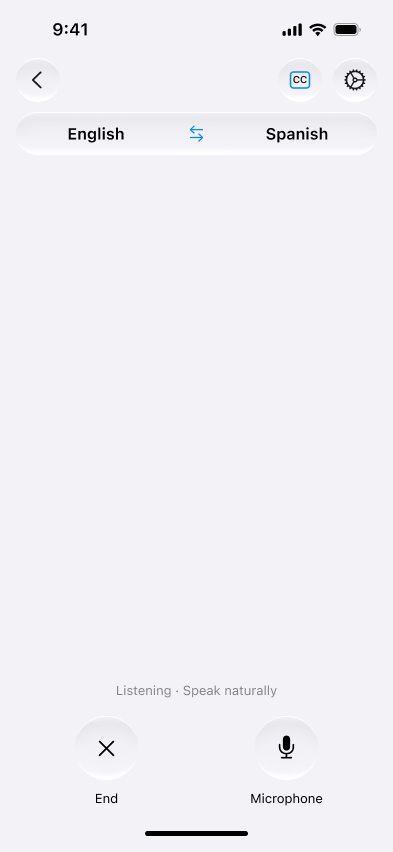
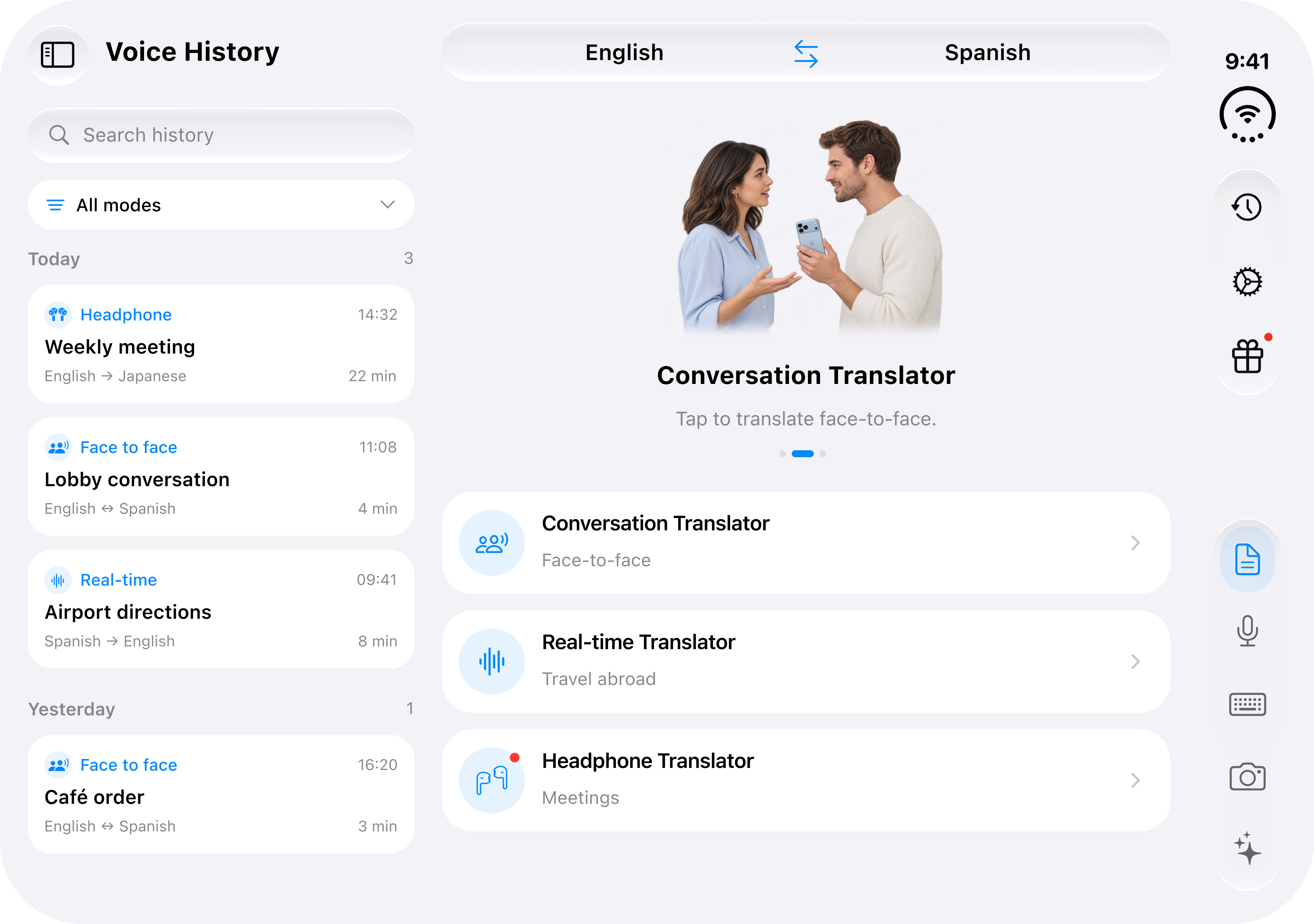
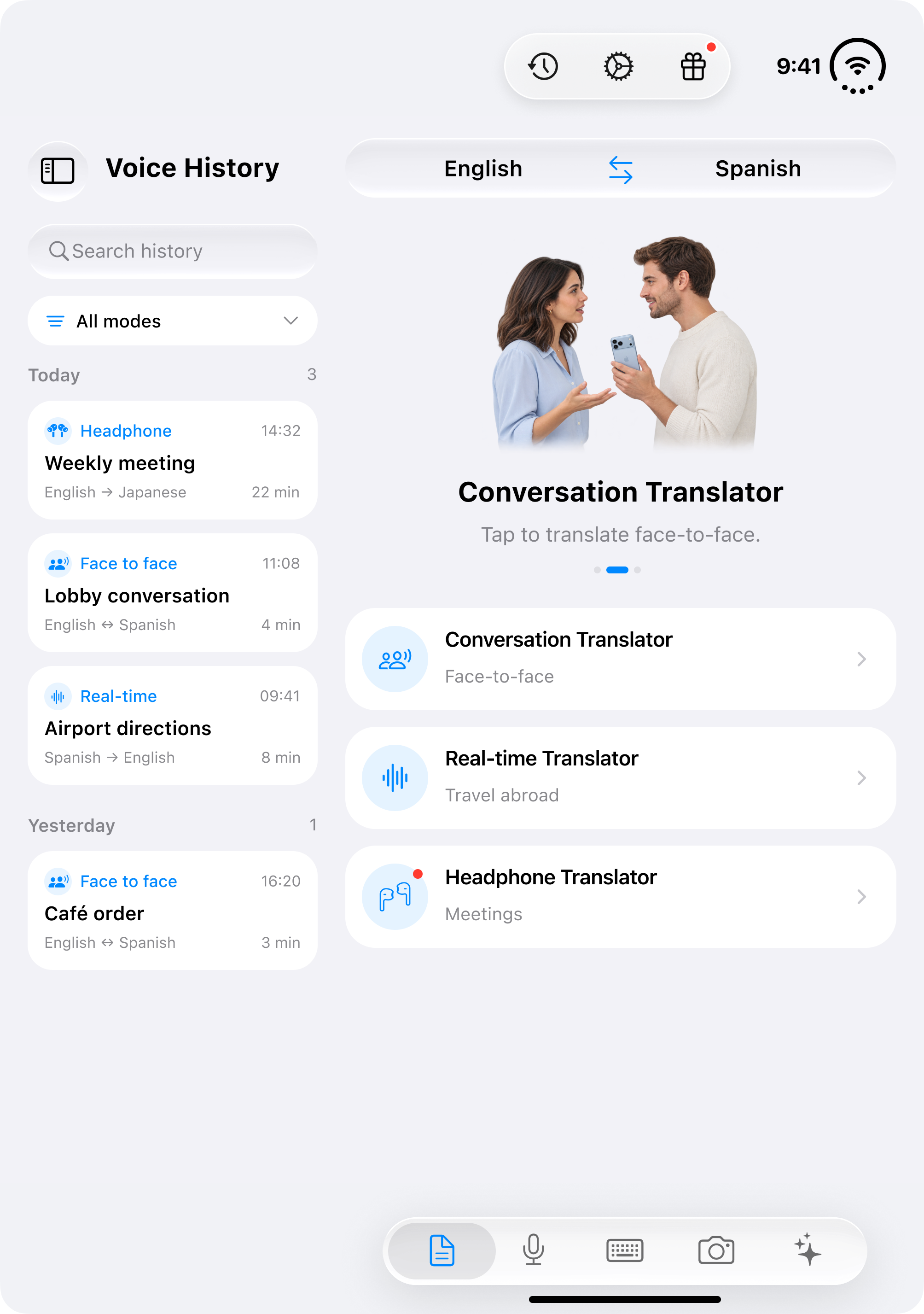
Say what you need, read the translation, and listen to its pronunciation. Use it to ask for directions, order a meal, or explain a request.
See how it works Live Translator
Translate text, speech, and photos with AI. Whether you’re ordering lunch abroad or talking with a colleague, Live Translator helps you understand others and get your meaning across.
Text, voice, and photo translation in one app.
 Ordering coffee
一杯拿铁,谢谢。
Un latte, s’il vous plaît.
Check if your hotel can hold your bags, confirm a meeting time, or reply to a friend. Translate what you want to say and make sense of what comes back.
See translation optionsSay what you need, read the translation, and listen to its pronunciation. Use it to ask for directions, order a meal, or explain a request.
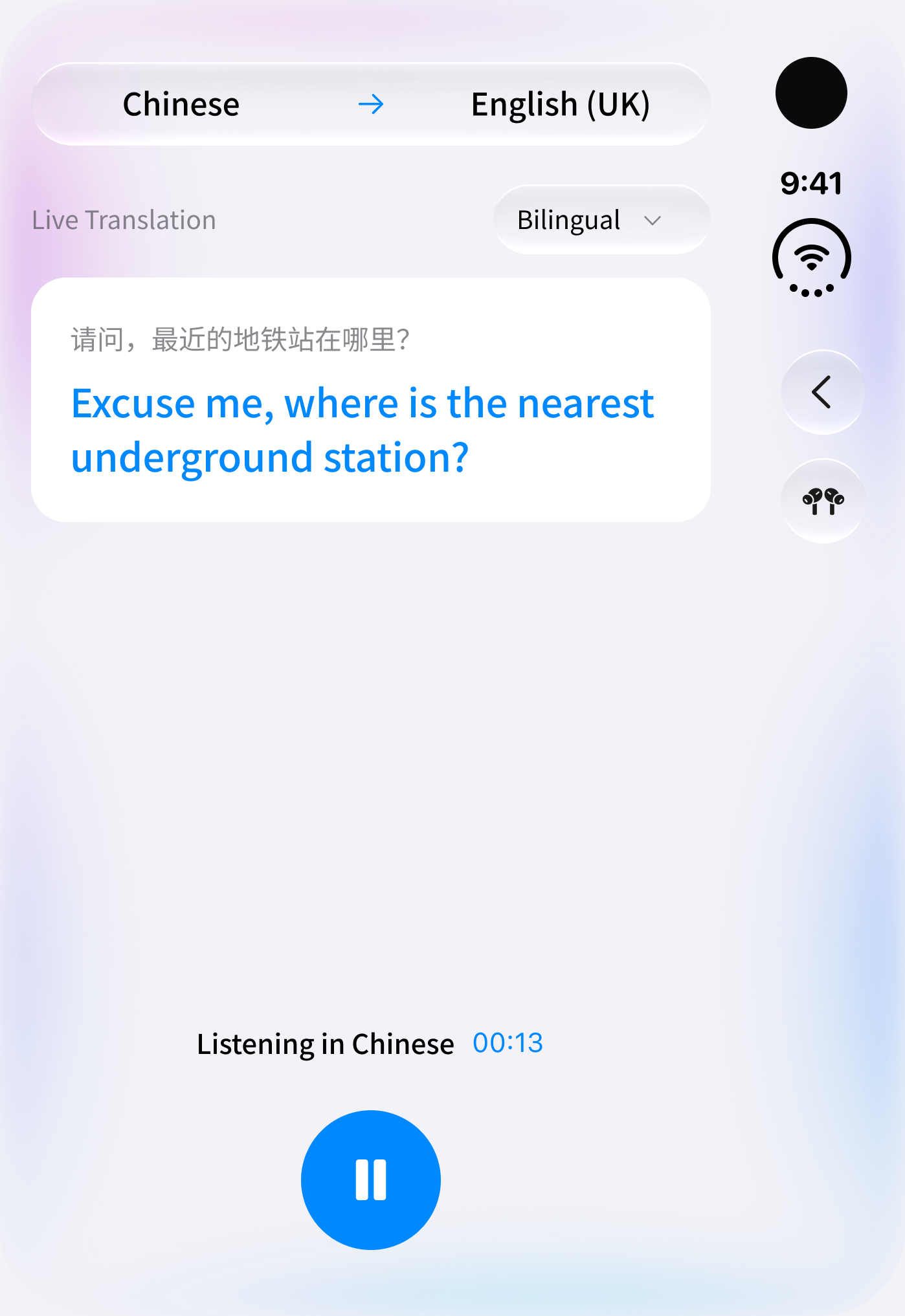
See how it worksListen to translations through connected headphones and follow the text on screen. Pause when you need to check a phrase or take a break.
See how it works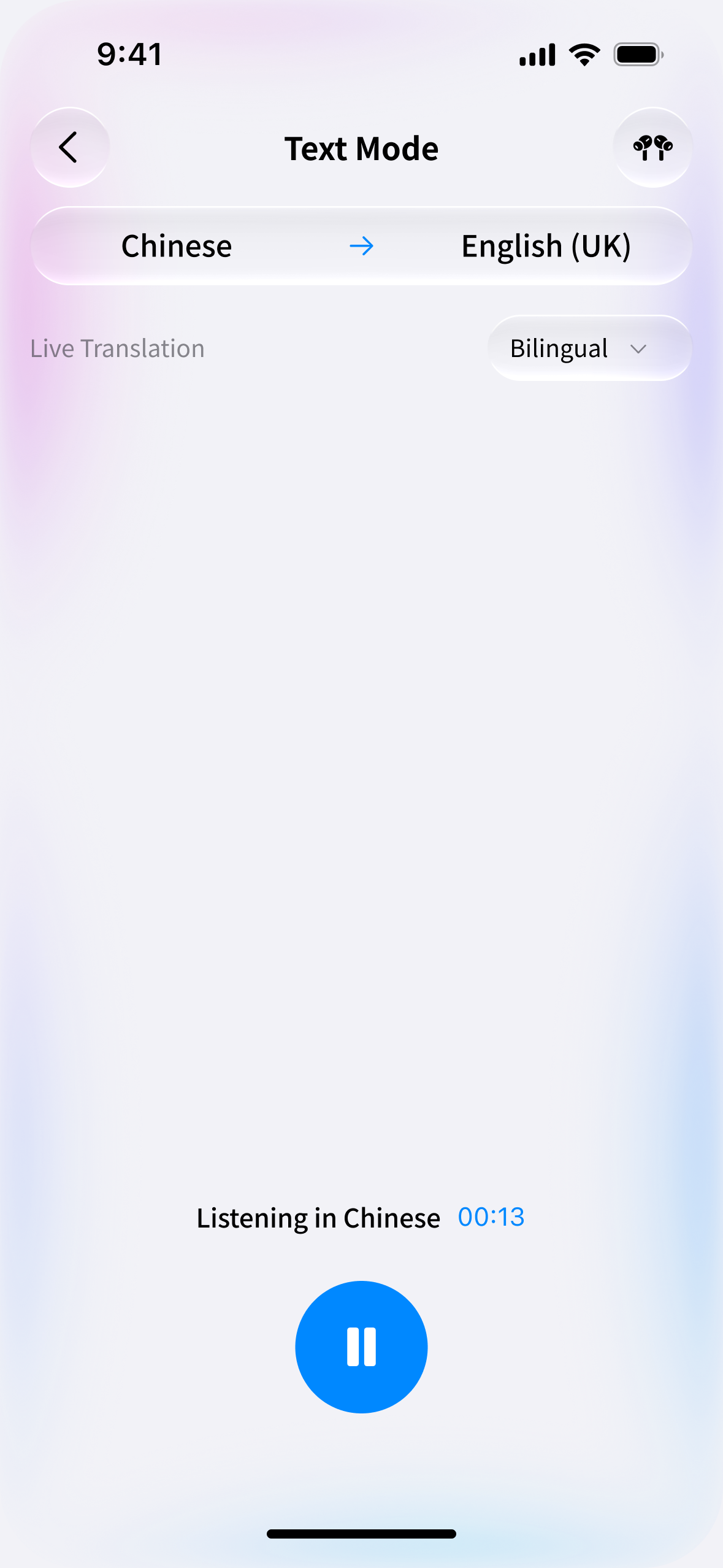
Take or import a photo to translate a menu, sign, or document. Compare the original with the translation before you order or follow an instruction.
Get the app


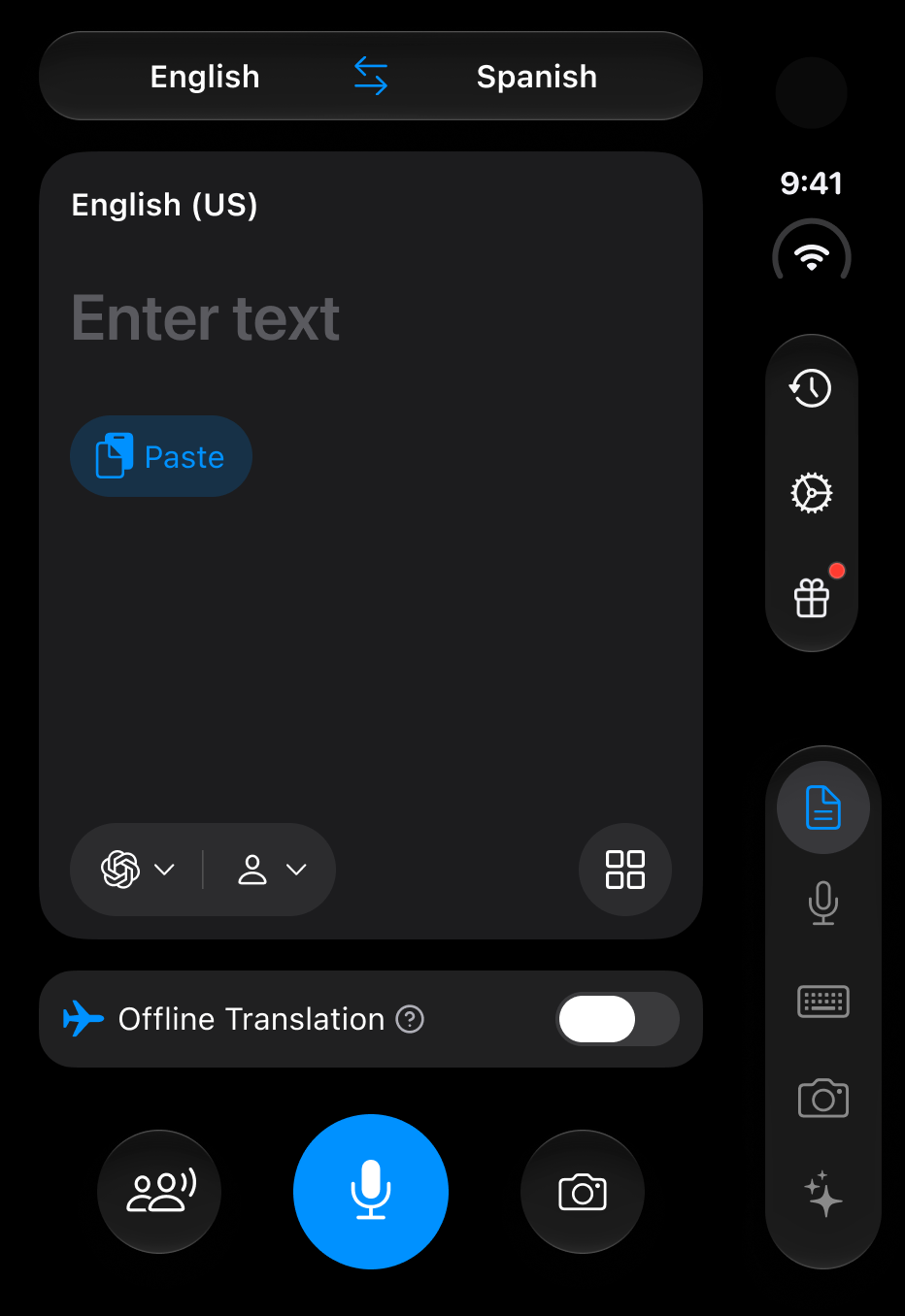
Translate a typed or pasted message, compare ways to phrase it, and listen to the pronunciation. Find an expression that fits what you want to say.
See AI expertsA message to a colleague needs a different tone from a chat with a friend. Choose an AI expert for travel, work, everyday life, or study to find a way to say it that fits.
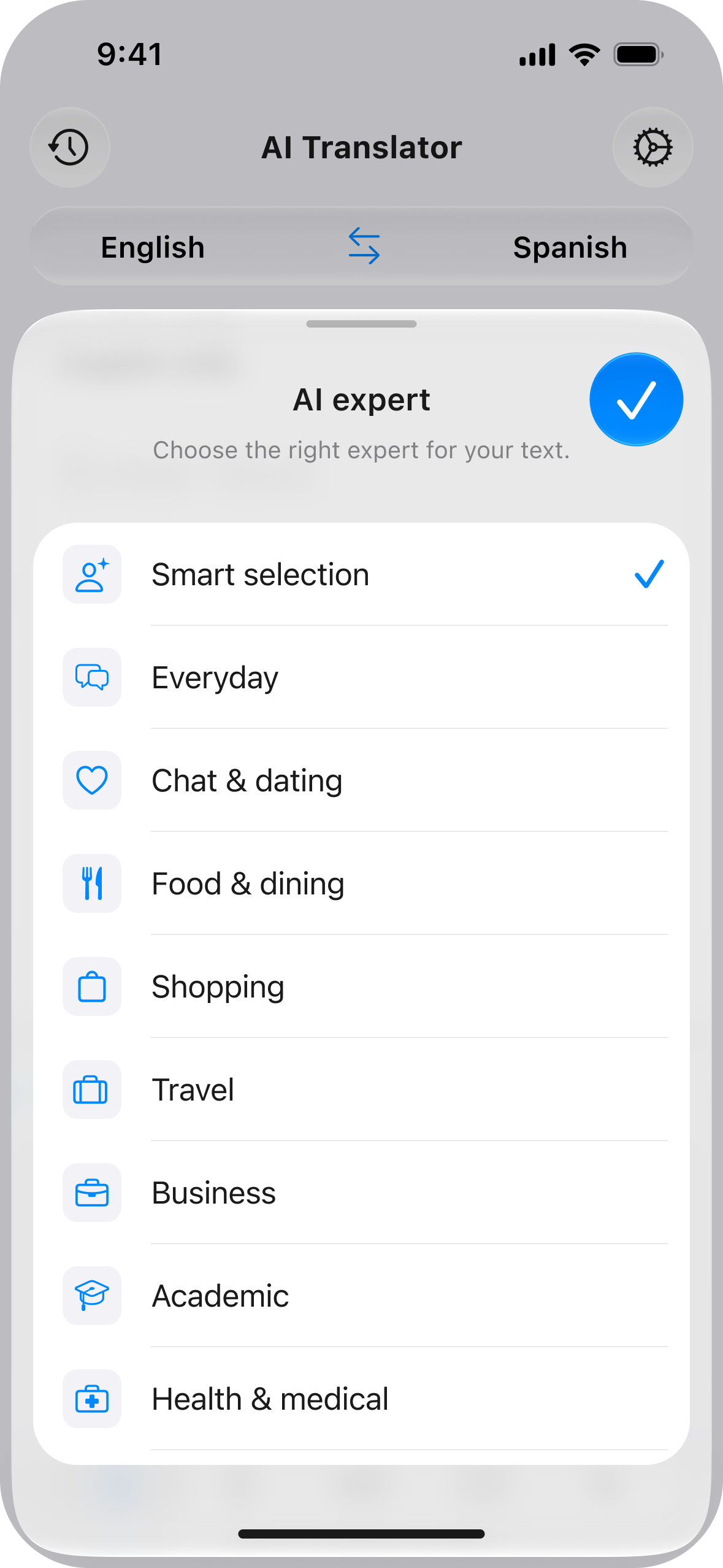
I'd like to ask someone to explain that more clearly.
Could you explain that again, please?
Ask politely for clarification when checking directions or ordering food.
Could you clarify that point?
Ask for clarification in a clear, professional tone.
Sorry, I didn’t quite get that.
Ask someone to explain again in a friendly, casual way.
Could you give me an example?
Ask for an example to help explain an unfamiliar idea or expression.
English expression · example
Choose the language you’re translating from and the language you want to translate into.
Use the translator keyboard, practice with an AI language teacher, and revisit useful chats.
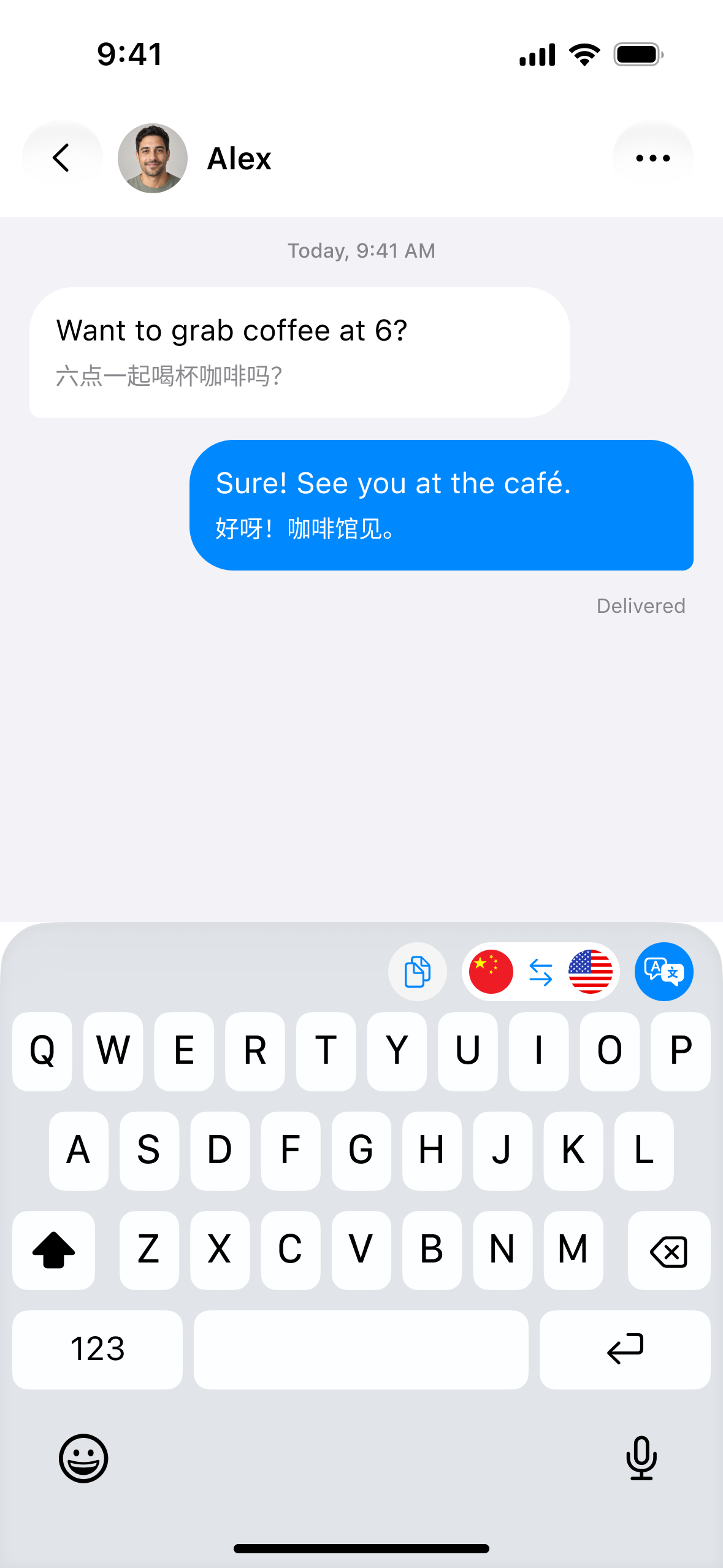
Translate a message while you compose it, with language settings and translation tools in the keyboard.
Get the app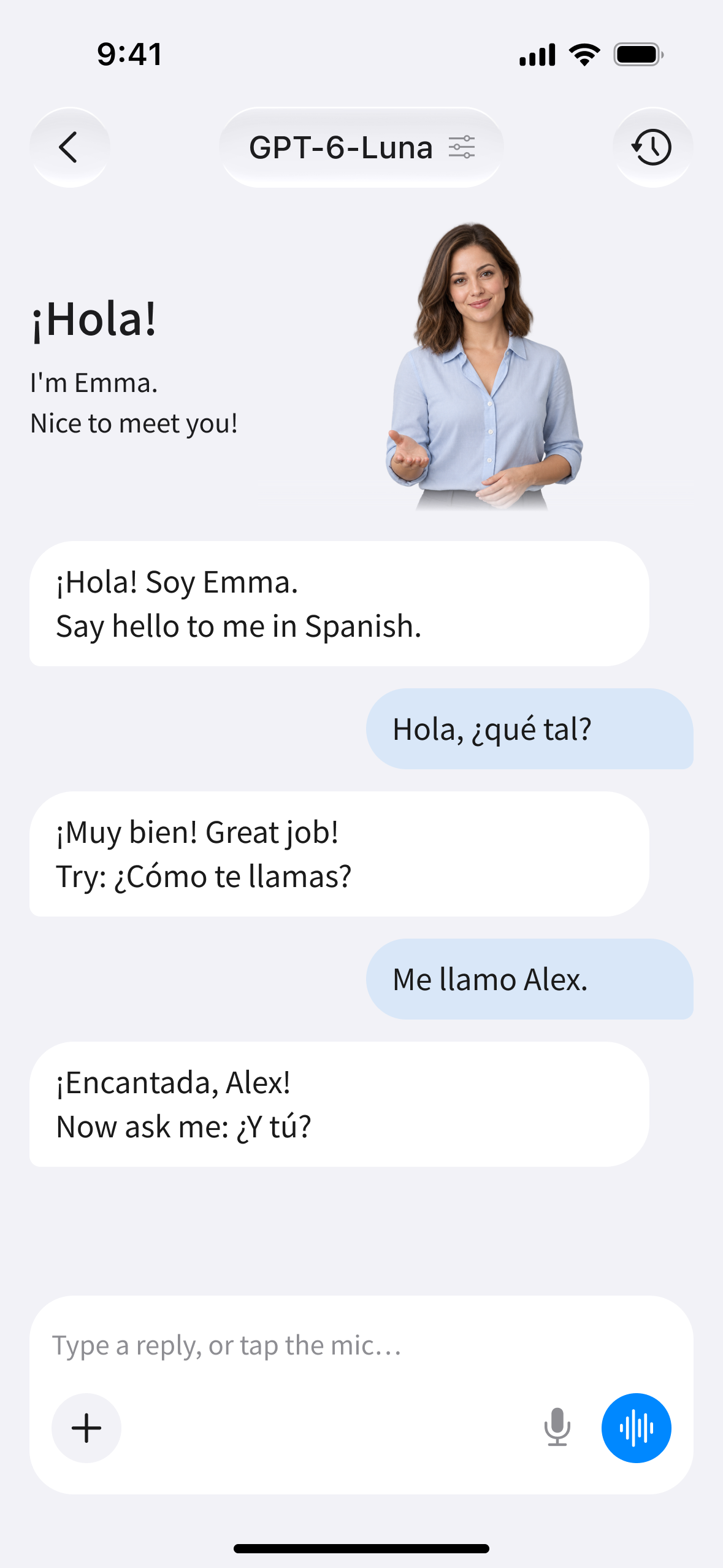
Practice a greeting or a short exchange with an AI language teacher before you use it in conversation.
Get the app
Look back through your AI chats and their summaries to review useful phrases or return to a topic.
Get the appCheck a menu, explain a request, or catch up with a friend.

Read a menu, ask which train to take, or explain what you need at the hotel.

Phrase a request to a colleague, check a message, or ask someone to explain a detail.

Compare expressions and listen to pronunciation as you learn how to say something new.

Reply to a neighbor, arrange plans with a friend, or ask a question in a shop.
Choose Text for typed or pasted messages, Voice for speech and conversations, or Photo for menus, signs, and documents. On Android, tap to speak in Manual Mode, use Real-time Mode hands-free, or listen to translations through connected headphones in Headphone Mode.
On Android, Manual Mode is free. Free use of Text, Real-time Mode, Headphone Mode, and Photo is limited, and ads may appear. Pro removes in-app ads and gives you access to the premium features listed on the purchase screen. Plans, prices, and availability vary by platform and app version. Check the purchase screen for details.
Yes, offline translation is available on both iOS and Android.
Use the store account you originally purchased with. On Android, open Me or a subscription screen and tap Restore using the same Google account. On iOS, restore purchases using the original Apple account. If you still cannot access your membership, contact support through Feedback in the app. This website cannot restore purchases.
For Google Play purchases, open Play Store → profile → Payments & subscriptions → Subscriptions, select Live Translator, and cancel. For Apple purchases, open iPhone/iPad Settings → your name → Subscriptions to cancel. Cancel a free trial before it ends. Uninstalling the app does not cancel your subscription, and cancelling does not issue a refund.
Google Play subscriptionsApple subscription guideHelp Center
For Google Play purchases, sign in with the purchasing account at play.google.com. Open Payments & subscriptions → Budget & order history → Report a problem and submit a refund request. For Apple purchases, sign in at reportaproblem.apple.com, choose Request a refund, select the reason and purchase, and submit. Approval depends on the store's policy and is not guaranteed. The time it takes to receive a decision is separate from the time it takes for refunded funds to reach your payment method. See the detailed refund guides below.
Google Play refund guideApple refund guideGoogle Play refund guideApple refund guide
Open Settings → Apps → Live Translator → Permissions. Allow Microphone for Voice and spoken input in Text, Camera for Photo, Photos/Storage to import or save images, and Nearby devices/Bluetooth for headphones. Enable only the permissions needed for the features you use.
Reconnect your Bluetooth headphones and put them on. Check your internet connection and Microphone/Bluetooth permissions, then reopen the app. Move closer to the person speaking and avoid several people speaking at once. On Android, Headphone Mode can show translated text without connected headphones, but it will not play audio. If the problem continues, send a screenshot through Feedback in the app.
On Android, open Me → Feedback. On iOS, open Feedback in the app. Include the feature you're having trouble with, your phone model, app version, and a screenshot. For purchase issues, try Restore first. Never send passwords. This website offers instructions only; it does not provide live chat or accept feedback submissions.
Read the Privacy Policy and Terms of Service in the app. On Android, account settings and account deletion are under Me → Account. Deleting your account or uninstalling the app does not cancel a store subscription. Manage and cancel recurring payments separately through the store.
Proprietary AI · End-to-end encryption
Available on iOS and Android.
Download the app and try text, voice, and photo translation.
Availability and in-app pricing may vary by region. Check your app store for details.